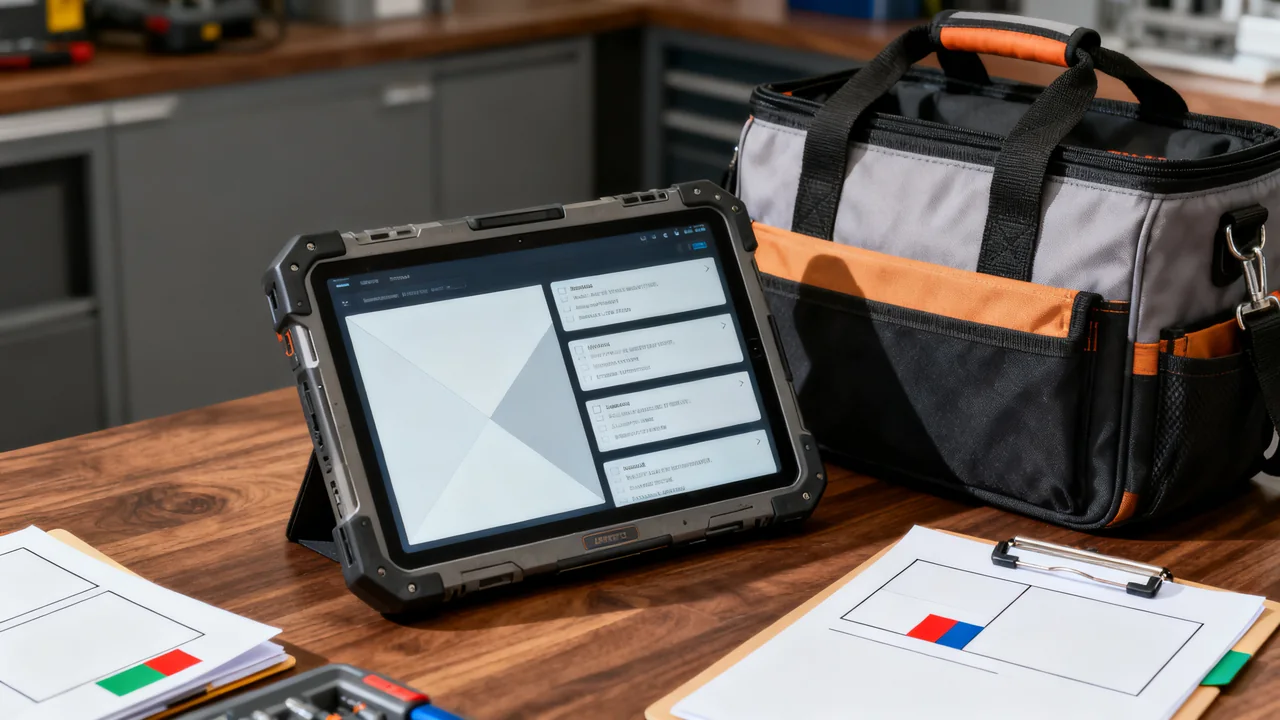
A technician should be able to locate the job, agreed scope and important access instructions without searching through unrelated messages. This guide focuses on the layout of the work order: which information appears first, what stays nearby and how to test whether a small screen hides something important.
This guide assumes you already have a process for converting accepted quotes to scheduled work, separating internal and customer-facing notes, and defining clear job scopes. It builds on those existing steps to format information so technicians can process it quickly, even when working outdoors, with gloved hands, or on a small mobile screen.
Define the Scannable Core Information Block
Use the first visible screen for the details needed to identify the correct visit: job reference, site, appointment, responsible contact and a concise scope summary. The number of visible fields depends on the device, font size and job complexity. Do not assume a fixed percentage of the page or a universal memory limit determines a usable layout.
Decide prominence by the consequence of missing a field, not only how often it appears. An uncommon but critical access or safety instruction still needs a clear alert when relevant. Keep access credentials in role-restricted fields, with a visible pointer for authorized staff rather than placing them in widely shared notes.
Format core fields with clear, high-contrast labels and consistent placement so technicians learn where to look for each detail without reading labels every time. For mobile app work orders, pinning this block to the top of the screen so it stays visible even when scrolling through lower sections is a vendor-dependent feature; confirm your work order platform supports this functionality before building it into your process. For printed work orders, print this block in bold text or a shaded box to set it apart from other content.
Structure Scope Details for Skimmable Reading
The job scope section, which appears immediately after the core information block, should use short, action-oriented bullet points instead of paragraph text. Start each bullet with a verb to make the required work explicit, and avoid vague phrasing like “check the HVAC system” in favor of specific, measurable tasks.
Group related tasks together under short subheadings if the job has more than 4 discrete tasks. For example, a residential HVAC maintenance job might have subheadings for “Indoor Unit Tasks” and “Outdoor Unit Tasks” instead of a single unbroken list of bullets. Limit each subheading group to 5 bullets max to avoid overwhelming the reader.
Omit any quote assumptions or fine print from this section unless it directly impacts how the technician performs the work. For example, if a quote assumes the customer will clear a path to the water heater, that detail belongs here, but quote expiration dates or payment terms do not. Those details belong in customer-facing or back-office sections of the work order that are not visible in the technician’s default view, if your platform supports role-based view permissions.
Illustrative Example: Scannable vs. Non-Scannable Scope Comparison
The below example uses assumed details for a residential plumbing job to show the difference between a scannable and non-scannable scope:
Non-scannable scope (12+ seconds to process, hypothetical timing):
Per the accepted quote dated 10/12/2024, we will be replacing the customer’s existing 50-gallon electric water heater in the basement, which was installed in 2012 and is showing signs of leakage near the bottom inlet valve. The customer has already cleared the area around the unit per our request, but they mentioned the basement light switch is located near the top of the stairs, so you may need to bring a work light if the bulb is out. Please also test the pressure relief valve after installation, and make sure to dispose of the old unit at the city recycling center, as we agreed in the quote. The customer also asked if you could take a look at the slow drain in the master bathroom sink, which is not included in the quote, so please provide a separate estimate for that work before proceeding if they bring it up again.
Scannable scope (3 seconds to process, hypothetical timing):
– Replace 50-gal electric water heater (basement)
– Test pressure relief valve post-install
– Dispose of old unit at city recycling center
– Optional add-on (quote required first): Assess slow master bathroom sink drain
On-site note: Basement light switch at top of stairs; bring work light if bulb is out
Format Scan-Friendly Barcode and QR Code Placement
If your workflow uses barcodes or QR codes to pull up work order details, log arrival, or scan parts, place these codes in the core information block so they are visible without scrolling or flipping a printed page. Avoid placing codes near folded edges of printed work orders, as creases can make scanning difficult.
Choose code size, contrast and surrounding clear space from the code type, data density, printer and scanner documentation, then test the actual output. A barcode and a QR code do not share a universal minimum dimension. Verify scanning from the printed page and the smallest supported screen under representative lighting, and keep the job reference readable as a fallback if the scan fails.
A useful test case for code functionality: Assign a technician to scan the code while standing in direct sunlight with a smudged phone screen and work gloves on. A passing result is a successful scan on the first try; a failing result requires adjusting code size, contrast, or placement.
Use Consistent Visual Cues for Priority and Special Requirements
Use a small set of standardized visual indicators to flag high-priority jobs, customer accessibility needs, or site hazards without requiring technicians to read full notes. Limit your set of indicators to 5 or fewer unique icons or color codes to avoid confusion, and publish a shared reference sheet so the entire team uses the same cues consistently.
Use action-focused labels such as “Call access contact before arrival” or “Assessment required before proceeding.” Do not use a disability label as a substitute for the customer’s requested communication arrangement. Pair a short alert with a link to the relevant instructions and ensure that sensitive details are visible only to the appropriate role.
Pair color with a readable text label or recognizable icon so the meaning is still available without color. Check the layout in grayscale, at enlarged text settings and under the device conditions your team uses. A warning that is technically present but clipped off-screen is not an effective handoff.
Decision Table: Work Order Element Placement
Use the below table to decide where to place each work order element to maximize scannability. All placement decisions assume you are designing for a technician viewing the work order on a 5-inch mobile screen or a half-page printed ticket.
| Work Order Element | Core Block (Top, No Scroll) | Secondary Section (Scroll Required) | Hidden/Back Office Only |
|---|---|---|---|
| Job site address and unit number | X | ||
| Customer first name and contact number | X | ||
| 3-5 core job tasks | X | ||
| Gate access code or lockbox combination | X | ||
| Original quote fine print and payment terms | X | ||
| Customer past due balance notes | X | ||
| Required parts list with part numbers | X |
Review which fields technicians actually need at arrival and which they repeatedly search for. Move the relevant alert higher when a job has special access requirements, while keeping the credential itself restricted. A rare but consequential condition should remain visible when triggered. Test both ordinary jobs and those exceptions rather than optimizing only the most common screen.
Test Scannability With Real Field Team Members
Before rolling out a new work order format, run a quick usability test with 2-3 technicians who regularly work in the field to confirm the layout works for their use cases. Use a consistent test script to get actionable feedback, rather than open-ended questions about whether they “like” the new format.
A sample test workflow: Pull 3 real recent work orders, reformat them using your new layout, and ask the technician to perform the following tasks while timing them: 1) State the customer’s first name and address, 2) List the 3 core job tasks, 3) Identify if the job has any special site requirements. If they can complete all 3 tasks in 10 seconds or less (this threshold is an illustrative baseline; adjust based on your team’s typical job complexity), the format passes. If it takes longer, identify which elements are hard to find and adjust the layout accordingly.
Common pain points to watch for during testing: Technicians squinting to read small text, scrolling multiple times to find core details, or asking for clarification on icon meanings. Address these before rolling out the format to the full team to avoid unnecessary delays in the field.
Actionable Quick Scan Audit Checklist
Use this 4-step checklist to audit any existing work order for scannability in 60 seconds or less (hypothetical timing):
- Core block has 6 or fewer fields, all relevant to 90%+ of your jobs, and stays visible when scrolling (if your platform supports pinned sections)
- Job scope uses verb-led bullet points, no paragraph text, and omits non-actionable quote fine print
- All visual cues (priority, hazards, accessibility needs) use both icons and text labels, no color-only indicators
- Barcodes/QR codes are placed in the core block, sized for gloved use, and tested for low-light functionality with your team’s devices
Edge Case Adjustments for Niche Workflows
For teams that handle large commercial jobs with 10+ discrete tasks, add a 1-sentence “job objective” line at the top of the scope section to give technicians a high-level overview before they read the full task list. For example, a commercial HVAC retrofit job might have an objective line that reads “Primary goal: Replace 3 rooftop AC units before end of day Friday; secondary goal: Test existing ductwork for leaks.” This line lets technicians prioritize work even if they do not have time to read the full task list immediately on arrival.
For teams that use offline mobile work order access, confirm that the core information block and scope section load first when opening a work order without an internet connection, and that large attachments like site survey photos load only when the technician explicitly selects them. Offline sync behavior is highly vendor-dependent, so test this functionality by putting a mobile device in airplane mode, opening a saved work order, and confirming core details are visible without a connection before rolling out offline access to your team. This reduces load times for technicians working in areas with no cell service, and ensures they can access critical details even if attachments fail to load.
Have a question or a correction?
Contact the editorial team